User Guide
ArtHive is a desktop application for artists to manage clients and commissions, optimized for use via a Command Line Interface (CLI) while still having the benefits of a Graphical User Interface (GUI). If you can type fast, ArtHive can get your tasks done faster than traditional GUI apps.
ArtHive is intended for managing Singapore-based contacts, where phone numbers are 8 digits long and start with 3, 6, 8 or 9.
- Quick start
-
Features
- Viewing help :
help - Listing all contacts :
list - Adding a contact:
add - Editing a contact :
edit - Locating contacts:
find - Deleting a contact:
delete - Tagging a Contact with a Tag/Project :
tag - Untagging a Contact with a Tag/Project :
untag - Updating the status of a Project :
setstatus -
Saving the data :
save - Creating snapshot of data:
snapshot - Switching preferred contact :
switchcontact - Clearing all entries :
clear - Exiting the program :
exit
- Viewing help :
- FAQ
- Known issues
- Command summary
Quick start
-
Ensure you have Java
17or above installed in your Computer.
Mac users: Ensure you have the precise JDK version prescribed here. -
Download the latest
.jarfile from here. -
Copy the file to the folder you want to use as the home folder for ArtHive.
-
Open a command terminal,
cdinto the folder you put the jar file in, and use thejava -jar arthive.jarcommand to run the application.
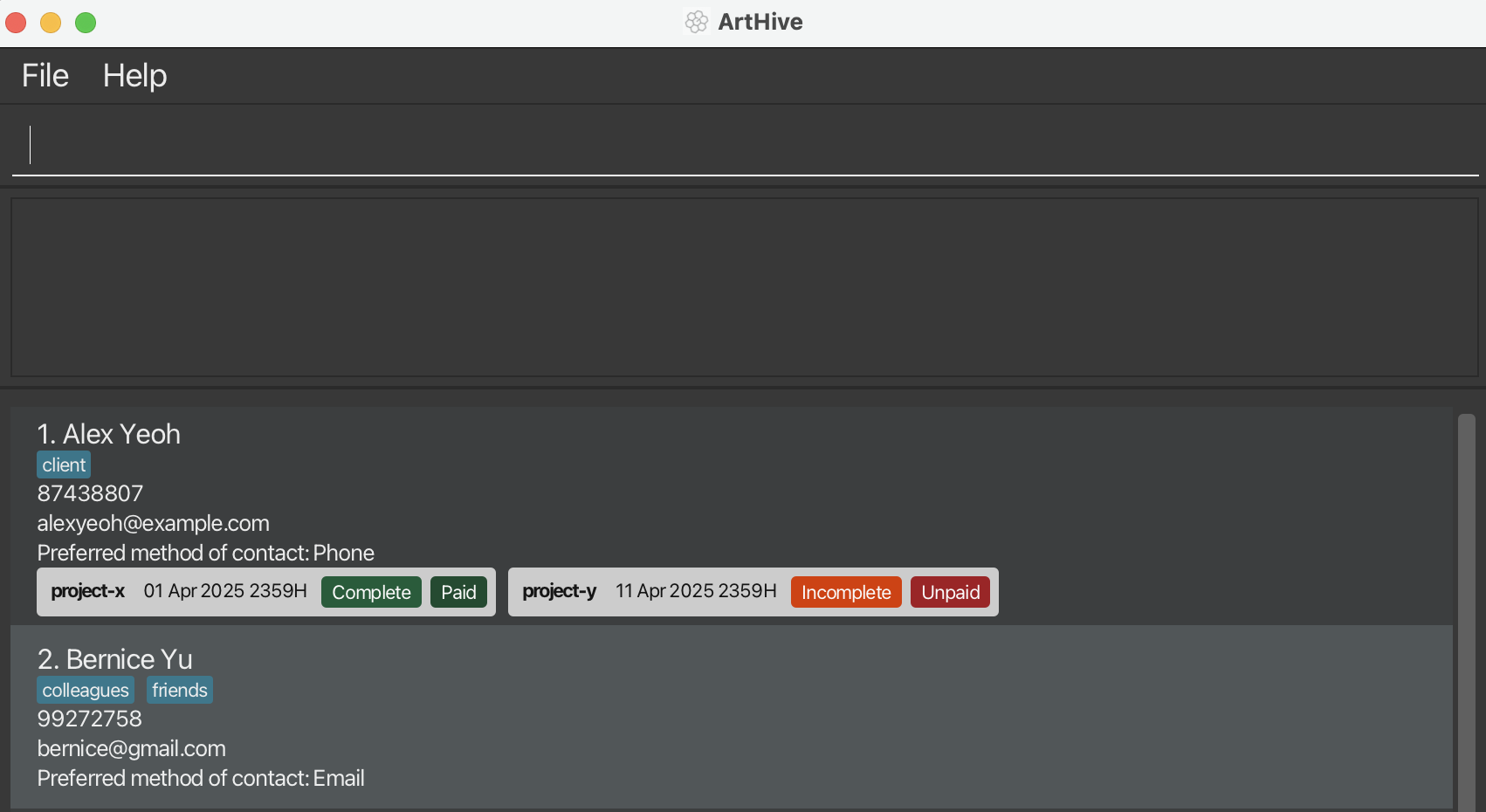
A GUI similar to the below should appear in a few seconds. The app may already contain some sample data which may not be the same as shown below.
-
Type the command in the command box and press Enter to execute it. e.g. typing
helpand pressing Enter will open the help window.
Some example commands you can try:-
list: Lists all contacts. -
add n/John Doe p/98765432 e/johnd@example.com: Adds a contact namedJohn Doeto ArtHive. -
delete 3: Deletes the 3rd contact shown in the current list. -
clear: Deletes all contacts. -
exit: Exits the app.
-
-
Refer to the Features below for details of each command.
Features
 Notes about the command format:
-
Words in
UPPER_CASEare the parameters to be supplied by the user.
e.g. inadd n/NAME,NAMEis a parameter which can be used asadd n/John Doe. -
Items in square brackets are optional.
e.gn/NAME [t/TAG]can be used asn/John Doe t/friendor asn/John Doe. -
Items in round brackets with a vertical line
|indicate a required choice between options.
e.g.(t/TAG | project/PROJECT)means the user must provide eithert/TAGorproject/PROJECT. -
Items with
… after them can be used multiple times including zero times.
e.g.[t/TAG]…can be used ast/friend,t/friend t/familyetc. -
Parameters can be in any order.
e.g. if the command specifiesn/NAME p/PHONE,p/PHONE n/NAMEis also acceptable. -
Extraneous parameters for commands that do not take in parameters (such as
help,list,exitandclear) will be ignored.
e.g. if the command specifieshelp 123, it will be interpreted ashelp. -
If you are using a PDF version of this document, be careful when copying and pasting commands that span multiple lines as space characters surrounding line-breaks may be omitted when copied over to the application.
Viewing help : help
Shows a message explaning how to access the help page.
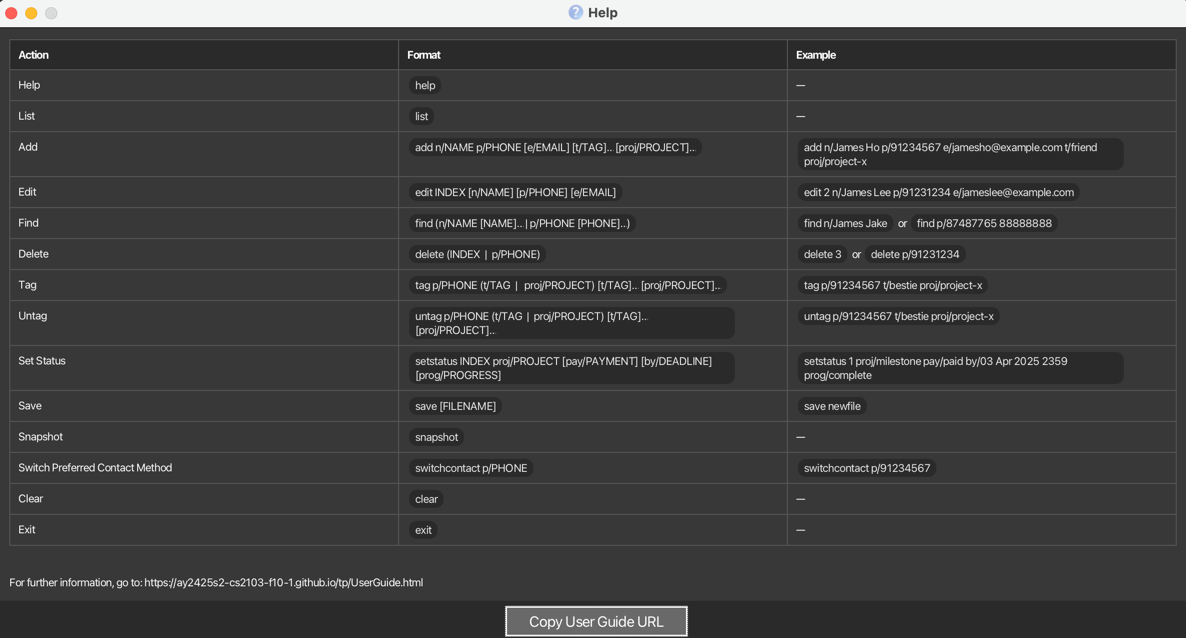
Format: help
Listing all contacts : list
Shows a list of all contacts in ArtHive.
Format: list
Adding a contact: add
Adds a contact to ArtHive.
Format: add n/NAME p/PHONE [e/EMAIL] [t/TAG]… [proj/PROJECT]…
 Tip:
A contact can have any number of tags and/or projects (including 0).
Tip:
The email address is optional. You can choose to leave it blank if you prefer not to provide it.
Tip:
The app allows duplicate names but does not allow duplicate phone numbers.
Tip:
A contact can have any number of tags and/or projects (including 0).
Tip:
The email address is optional. You can choose to leave it blank if you prefer not to provide it.
Tip:
The app allows duplicate names but does not allow duplicate phone numbers.
Name (n/NAME)
- When specifying a
NAME, please ensure it follows these rules:-
Allowed Characters:
- Alphanumeric characters (A-Z, a-z, 0-9)
- Names can contain spaces. However, trailing and leading white space will be trimmed (e.g. “ Johnny Test “ will be saved as “Johnny Test”).
- Special characters:
-,_,.,/,,and' - Maximum length: 40 characters
-
Not Allowed Characters:
- Prefix commands (n/, p/, e/, t/, proj/, by/, pay/, prog/) are NOT allowed
- Any other special characters outside the allowed list
-
Allowed Characters:
Phone (p/PHONE)
-
PHONEmust be exactly 8 digits long, beginning with either 3, 6, 8 or 9.
Email (e/EMAIL)
- The
EMAIL(if provided) must be in a valid email address format (i.e. name@domain.com), without spaces. - Local-part of an email must NOT contain 2 or more consecutive dots (e.g. johny..test@gmail.com would be invalid)
- Local-part of an email are ALLOWED to have multiple consecutive special characters (
+,-,_) - Local-part of an email are ALLOWED to have dots (.), but the dots must not appear consecutively (e.g. Johnny…..test@example.com)
- Email MUST contain a Top-Level Domain.
Tag/Project (t/TAG / p/PROJECT)
-
TAG/PROJECTcan only contain alphanumeric characters with underscore and hyphens, and be between 1 and 20 characters long.
Examples:
add n/Sarah Lee p/91233215add n/John Doe p/98765432 e/johnd@example.com-
add n/Betsy Crowe e/betsycrowe@example.com p/92345678 t/friend proj/betsy_project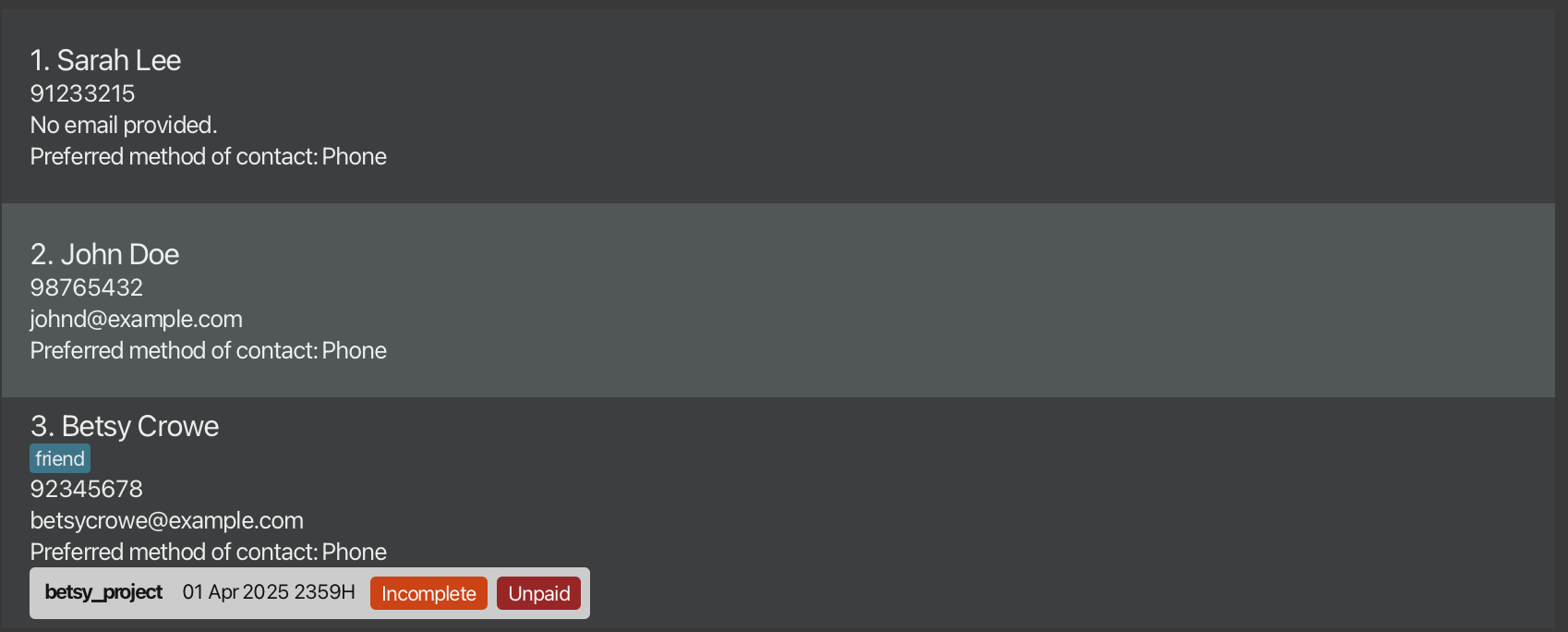
Editing a contact : edit
Edits an existing contact in ArtHive.
Format: edit INDEX [n/NAME] [p/PHONE] [e/EMAIL]
- Edits the contact at the specified
INDEX.- The index refers to the positive integer within the bounds of the displayed contact list 1, 2, 3, …
- The
INDEXmust be a valid index (i.e. Positive integer within the bounds of the displayed contact list).
- Only edits to a contact’s name, phone number and email address is allowed.
- At least one of the optional fields must be provided.
- Existing values will be updated to the input values.
Name (n/NAME)
- When specifying a
NAME, please ensure it follows these rules:-
Allowed Characters:
- Alphanumeric characters (A-Z, a-z, 0-9)
- Names can contain spaces. However, trailing and leading white space will be trimmed (e.g. “ Johnny Test “ will be saved as “Johnny Test”).
- Special characters:
-,_,.,/,,and' - Maximum length: 40 characters
-
Not Allowed Characters:
- Prefix commands (n/, p/, e/, t/, proj/, by/, pay/, prog/) are NOT allowed
- Any other special characters outside the allowed list
-
Allowed Characters:
Phone (p/PHONE)
-
PHONEmust be exactly 8 digits long, beginning with either 3, 6, 8 or 9. - Additionally, the new number must not already be assigned to any existing contact in the list.
Email (e/EMAIL)
- The
EMAIL(if provided) must be in a valid email address format (i.e. name@domain.com), without spaces. - Local-part of an email must NOT contain 2 or more consecutive dots (e.g. johny..test@gmail.com would be invalid)
- Local-part of an email are ALLOWED to have multiple consecutive special characters (
+,-,_) - Local-part of an email are ALLOWED to have dots (.), but the dots must not appear consecutively (e.g. Johnny…..test@example.com)
- Email MUST contain a Top-Level Domain.
Examples:
-
edit 1 p/91234567 e/johndoe@example.comEdits the phone number and email address of the 1st contact to be91234567andjohndoe@example.comrespectively.
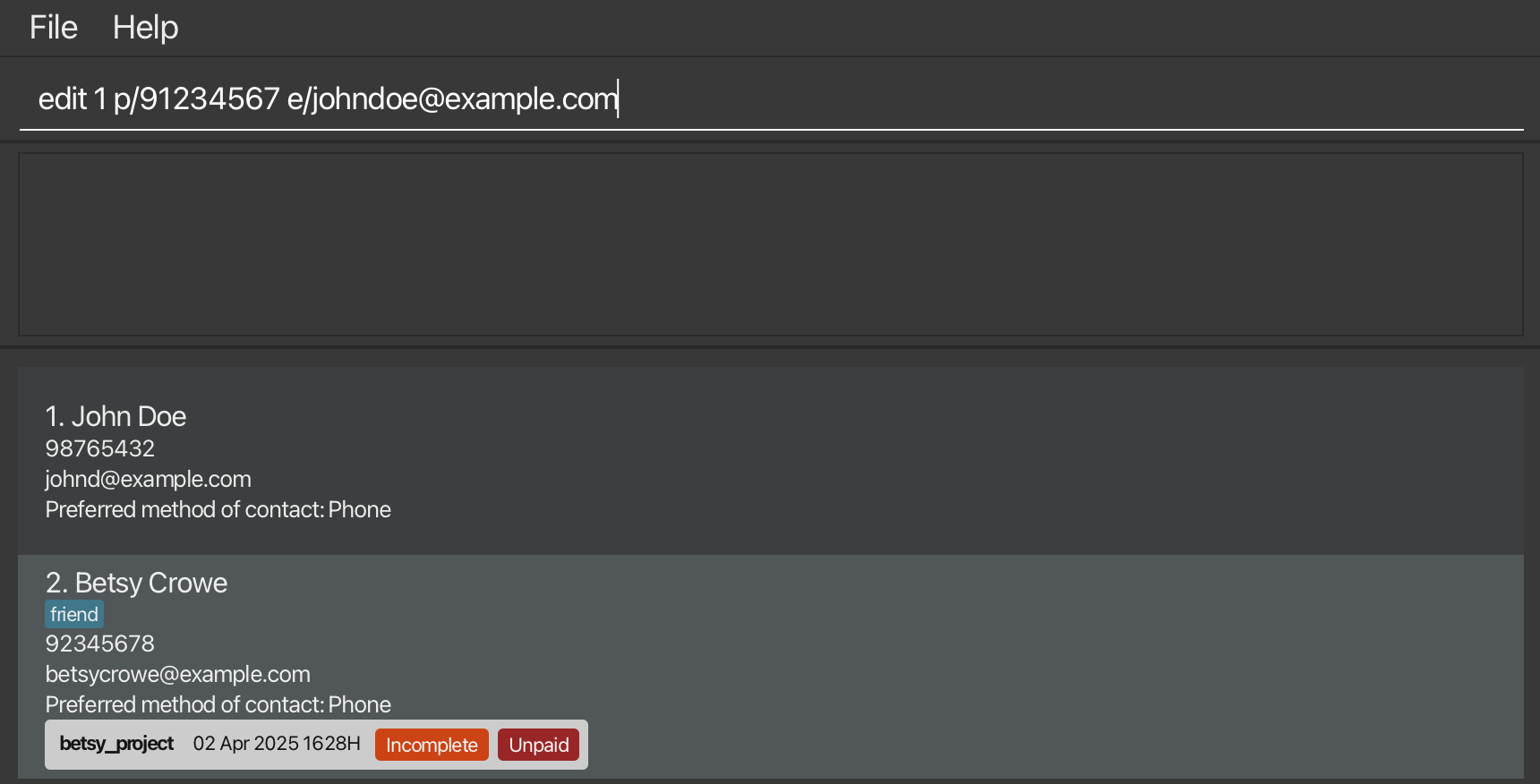
Before edit
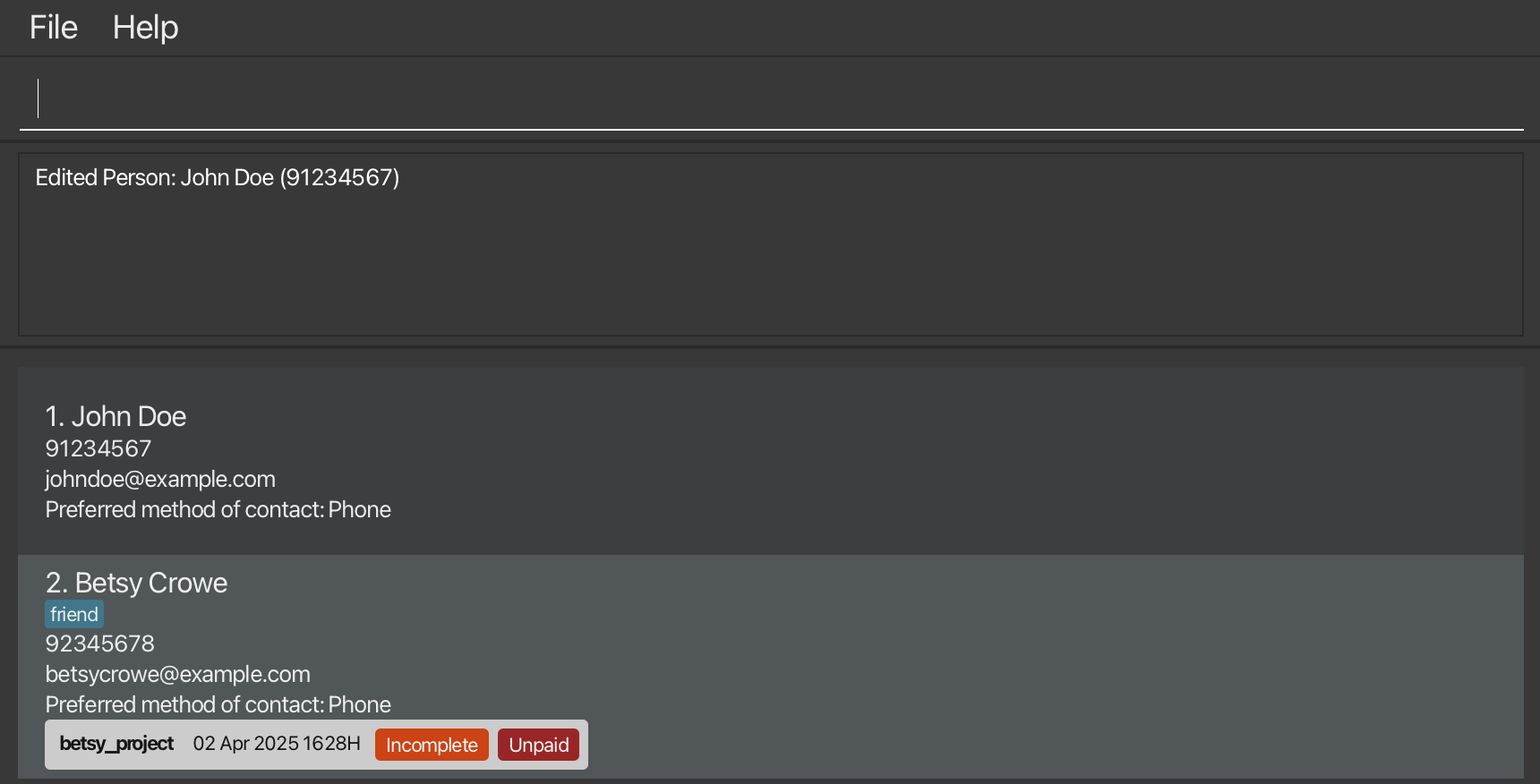
After edit
Locating contacts: find
Finds contacts whose name or phone numbers contain any of the given keywords
Format: find (n/NAME [NAME]… | p/PHONE [PHONE]…)
- Only one type of search per command is allowed, either by
NAME(alphabetic characters) or byPHONE(integers 0-9). - In each use of this command, there must be at least one
NAMEorPHONEspecified.
Search by NAME (n/NAME)
- The order of the
NAMEdoes not matter. e.g.Hans Bowill matchBo Hans. - The search for
NAMEis case-insensitive. e.ghanswill matchHans - Leading and trailing whitespaces around each
NAMEkeyword will be trimmed. For example, “Hans ” (with trailing spaces) will be treated as “Hans”, and “ Hans” (with leading spaces) will also be trimmed. - Spaces between
NAMEkeywords will not be trimmed. For example, “Hans Bo” will be treated as two separate keywords, while “Ha ns” (with a space inside) will remain as-is and will not match “Hans”. - Only the contact’s name is searched.
- Only full words will be matched e.g.
Hanwill not matchHans - Contacts matching at least one keyword will be returned (i.e.
ORsearch). e.g.Hans Bowill returnHans Gruber,Bo Yang
Search by PHONE (p/PHONE)
- The order of the
PHONEdoes not matter. e.g.88888888 66666666will match66666666 88888888. - Leading and trailing whitespaces around each
PHONEkeyword will be trimmed. For example, “88888888 ” (with trailing spaces) will be treated as “88888888”, and “ 88888888” (with leading spaces) will also be trimmed. - Spaces between
PHONEwill not be trimmed. For example, “88888888 66666666” will be treated as two separate keywords, while “8888 8888” (with a space inside a number) will remain as-is and will not match “88888888”. - Only the Contact’s phone number is searched.
- Only full phone numbers will be matched e.g
888will not match88888888.
Examples:
-
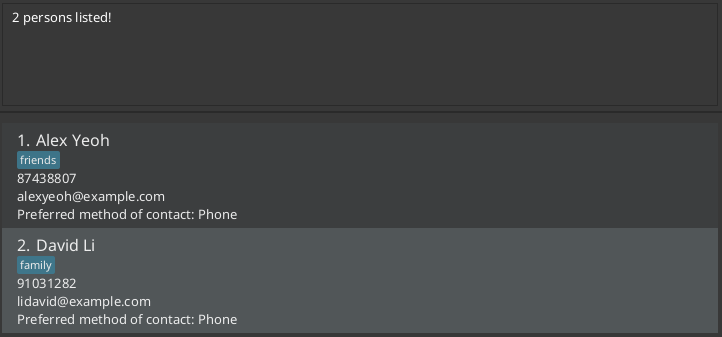
find n/alex davidreturnsAlex Yeoh,David Li
-
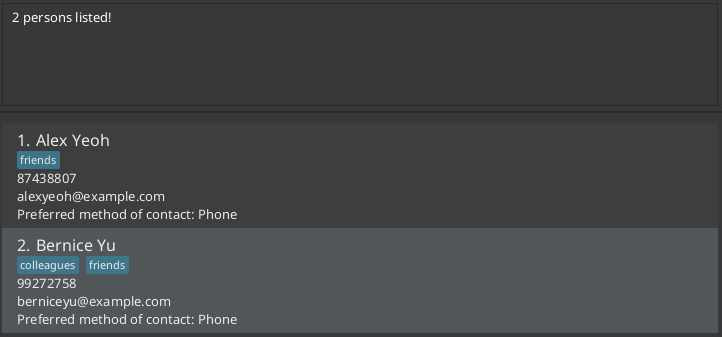
find p/87438807 99272758returnsAlex Yeoh,Bernice Yu
Deleting a contact: delete
Deletes the specified contact in the current displayed contact list from ArtHive.
Format: delete (INDEX | p/PHONE )
-
One and only one of
INDEXorp/PHONEmust be provided. -
Deletes the contact at the specified
INDEXor with the specifiedPHONE.- The index refers to the positive integer within the bounds of the displayed contact list 1, 2, 3, …
- The
INDEXmust be a valid index (i.e. Positive integer within the bounds of the displayed contact list).
Phone (p/PHONE)
- The
PHONEmust be an exact 8-digit phone number and must belong to a contact in the current displayed contact list.
Examples:
-
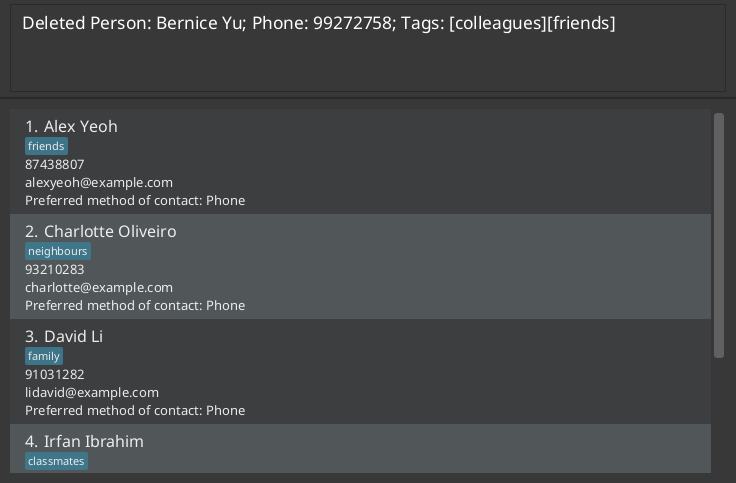
listfollowed bydelete 2deletes the 2nd contact in ArtHive.
-
listfollowed bydelete p/93210283deletes the contact with phone number 93210283.
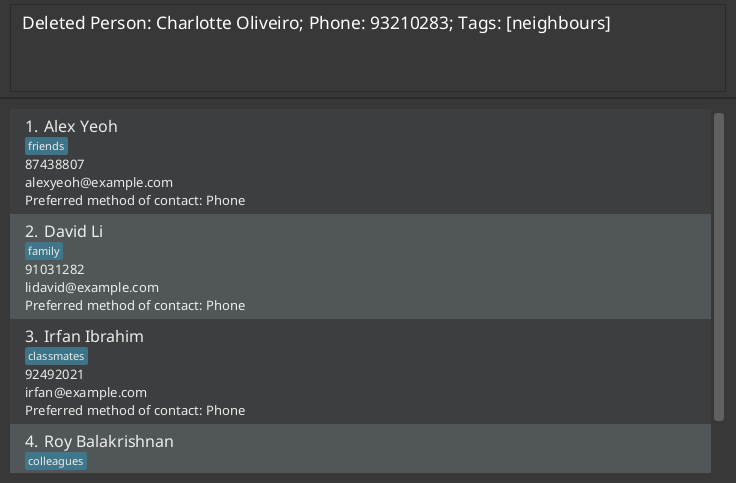
-
find Betsyfollowed bydelete 1deletes the 1st contact in the results of thefindcommand.
Tagging a Contact with a Tag/Project : tag
Assigns a Tag and/or a Project to an existing contact in ArtHive.
Format: tag p/PHONE (t/TAG | proj/PROJECT) [t/TAG]… [proj/PROJECT]…
- Adds one or more Tags/Projects to the contact specified by
PHONE. - In each use of this command, there must be at least one
TAGorPROJECTspecified.
Phone (p/PHONE)
- The
PHONEmust be an exact 8-digit phone number and must belong to a contact in the current contact list.
Tag/Project (t/TAG/p/PROJECT)
-
TAG/PROJECTcan only contain alphanumeric characters with underscore and hyphens, and be between 1 and 20 characters long. -
TAG/PROJECTare case-insensitive and will be automatically converted to lowercase regardless of input. For example,PROJ-Xwill be saved and displayed asproj-x. If anotherProj-Xis added to the same contact, it will be considered as adding a Tag/Project that already exists. - Projects will have a default values of “Incomplete”, “Unpaid”, and a deadline set 1 day after creation. Modifications can be made using the
setstatuscommand. - The existing Tags/Projects of the contact will not be removed when new Tags/Projects are added.
- Adding a Tag/Project that already exists for a contact will not result in an error, and the system will remain unchanged.
Examples:
-
tag p/81234567 t/friendAdds a Tagfriendto the contact who has the phone number81234567. -
tag p/91234567 t/friend proj/friend-projectAdds the Tagfriendand Projectfriend-projectto the contact who has the phone number91234567.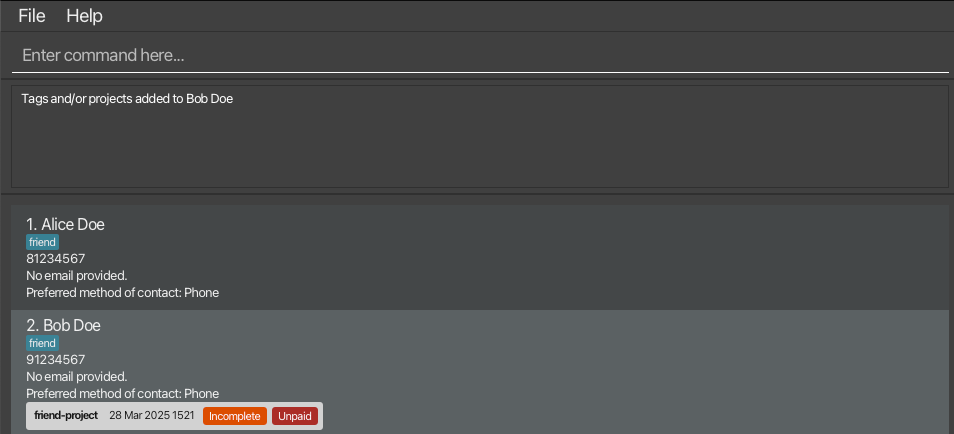
Untagging a Contact with a Tag/Project : untag
Deletes a Tag and/or a Project from an existing contact in ArtHive.
Format: untag p/PHONE (t/TAG | proj/PROJECT) [t/TAG]… [proj/PROJECT]…
- Removes one or more Tags/Projects from the contact specified by
PHONE, if it exists.
Phone (p/PHONE)
- The
PHONEmust be an exact 8-digit phone number and must belong to a contact in the current contact list.
Tag/Project (t/TAG/p/PROJECT)
- In each use of this command, there must be at least one
TAGorPROJECTspecified. -
TAG/PROJECTcan only contain alphanumeric characters with underscore and hyphens, and be between 1 and 20 characters long. - Untagging a Tag/Project from a contact deletes the Tag/Project forever.
Examples:
- Contact A with phone number
81234567has no tags.untag p/81234567 t/friendreturns an error message as the Tag does not exist. - Contact B with phone number
91234567has 1 Tagfriendand 1 Projectfriend-project.untag p/91234567 proj/friend-projectremoves the Projectfriend-projectonly.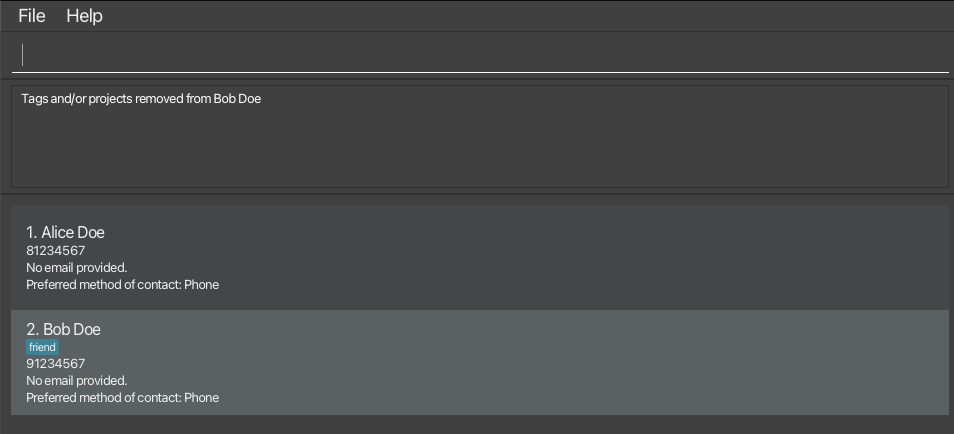
Updating the status of a Project : setstatus
Updates the status of a Project from an existing contact in ArtHive.
Format: setstatus INDEX proj/PROJECT [pay/PAYMENT] [by/DEADLINE] [prog/PROGRESS]
- Updates the Project tagged to the contact at the specified
INDEX. TheINDEXrefers to the index number shown in the displayed contact list. TheINDEXmust be a positive integer 1, 2, 3, … - The
INDEXmust be a valid index (i.e. Positive integer within the bounds of the displayed contact list). - At least one of the optional fields must be provided.
- Existing values will be updated to the input values.
Payments (pay/PAYMENT)
-
PAYMENTmust be eitherPaidorUnpaid(case-insensitive).
Deadlines(by/DEADLINE)
-
DEADLINEmust be in add MMM uuuu HHmmformat. (e.g 01 Apr 2025 2359). No check for past date is done
Progress (prog/PROGRESS)
-
PROGRESSmust be eitherCompleteorIncomplete(case-insensitive).
 Note:
Deadlines set in the past are allowed, and ArtHive does not notify users of approaching or missed deadlines.
Note:
Deadlines set in the past are allowed, and ArtHive does not notify users of approaching or missed deadlines.
Examples:
-
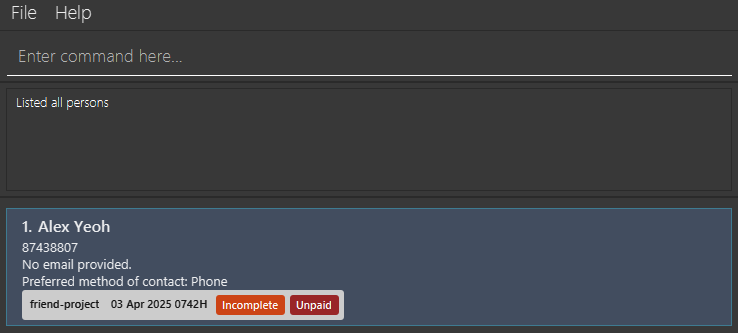
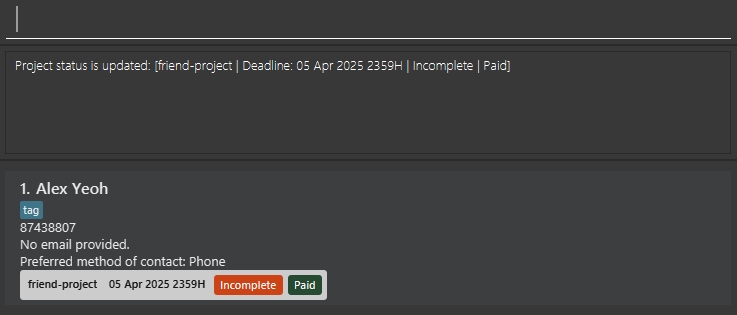
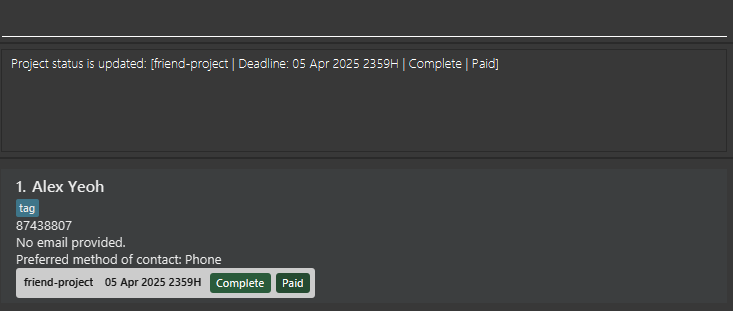
Alex YeohatINDEX1 has aPROJECTcalledfriend-project.
-
setstatus 1 proj/friend-project pay/paid by/05 Apr 2025 2359Updates thePAYMENTtoPaidand theDEADLINEto05 Apr 2025 2359
*setstatus 1 proj/friend-project prog/complete Updates the PROGRESS to Complete
Saving the data : save
Saves ArtHive data in the hard disk via passive (automatic) save or active (manual) save. Passive save activates after any command that changes the data. Active save activates when the user type in save as the command. This can be coupled with a [filename] parameter to change the name of the saved file. Upon changing the saved file name, all subsequent saves will be written to the new file.
Caution:
When using save [filename], if a file with the same name already exists in the [JAR file location]/data/ directory (even if unrelated to ArtHive), it will be overwritten without warning.
Format: save [filename]
- Saves the data to the hard disk.
-
filenamerestrictions:- May only contain letters (a-z, A-Z), numbers (0-9), underscore (_), and hyphen (-).
- No spaces or other special characters are allowed.
Examples:
-
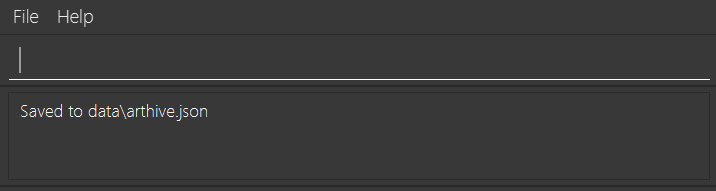
saveproceeds to save the data to the[JAR file location]/data/directory with thefilenamespecified inpreferences.json.
-
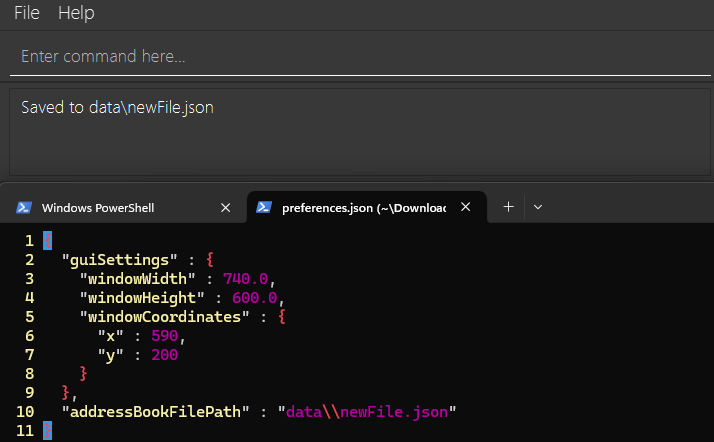
save newFileproceeds to save the data to[JAR file location]/data/newFile.json, deletes old saved file, and updatespreferences.json.
Editing the data file
ArtHive data are saved automatically as a JSON file [JAR file location]/data/[filename].json. Advanced users are welcome to update data directly by editing that data file.
Note:
[filename] refers to the saved file name that is specified in preferences.json
Caution:
If your changes to the data file makes its format invalid, ArtHive will discard all data and start with an empty data file at the next run. Hence, it is recommended to take a backup of the file before editing it.Furthermore, certain edits can cause ArtHive to behave in unexpected ways (e.g., if a value entered is outside of the acceptable range). Therefore, edit the data file only if you are confident that you can update it correctly. Hence these are some steps that you should take prior to editing the data file: 1. Create a snapshot using the
snapshot command.
2. Make a separate manual backup of your data file (just in case).
3. Exercise extreme caution when editing JSON structures.
If you experience data corruption after manual edits, you can restore from a snapshot as describe in the “Creating the snapshot of data” section.
Creating snapshot of data: snapshot
Creates snapshot of the existing data in the snapshots directory with a datetime stamp (“dMMMuuuu_HHmmss”).
Format: snapshot
Examples:
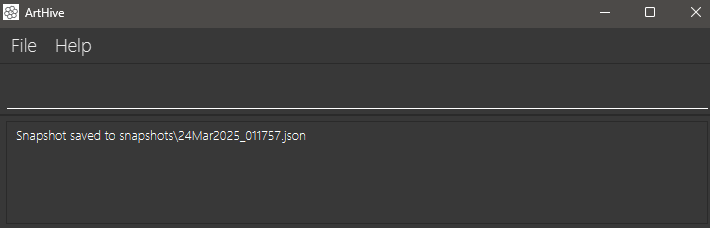
-
snapshotproceeds to create a snapshot of the existing save file with the name represented with the current datetime (e.g., 24Mar2025_172159.json).
Note:
Currently, ArtHive does not provide a direct command to restore from snapshots. To use a snapshot:
1. Locate the snapshot file in the [JAR file location]/snapshots/ directory.
2. Copy the desired snapshot file to [JAR file location]/data/.
3. Rename the snapshot file to match the filename specified in preferences.json.
4. Restart ArtHive to load the restored data.
</ol>
Switching preferred contact : switchcontact
Switch preferred contact.
Format: switchcontact p/PHONE
- If the current preferred contact method is email, it will switch to phone.
- If the current preferred contact method is phone, it will switch to email, provided the contact contains an email.
- phone is the default preferred contact method when a contact is created.
- If the contact does not have an email, the preferred contact method will remain as phone.
- The
PHONEmust be an exact 8-digit phone number and must belong to a contact in the current contact list.
Examples:
-
switchcontact p/91234567Switches the preferred contact method for the contact with phone number 91234567.

Clearing all entries : clear
Clears all entries from ArtHive, and deletes all the data from the savefile.
Format: clear
Caution:
Successful execution of this command will cause all contact data to be lost permanently and is irreversible.
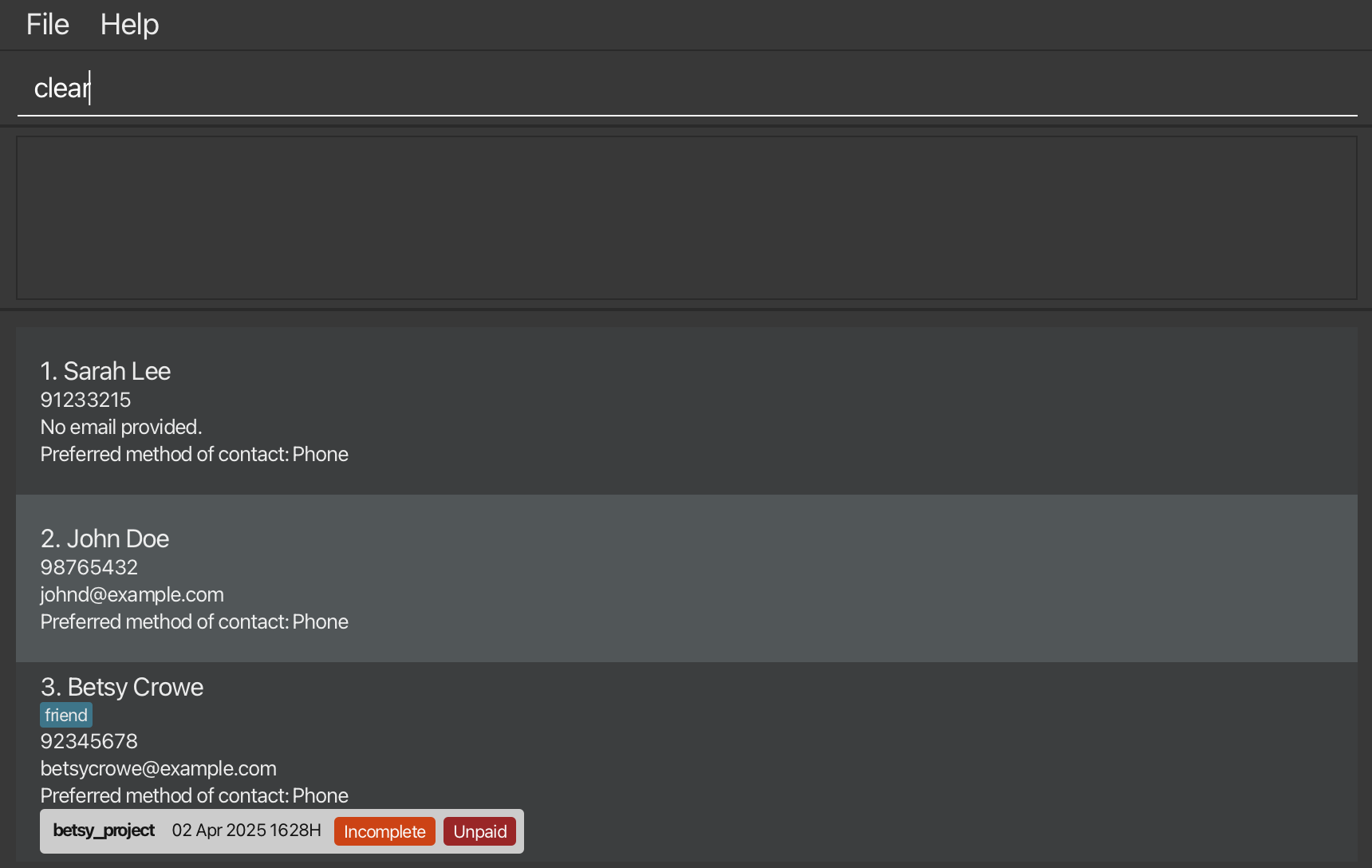
Before clear
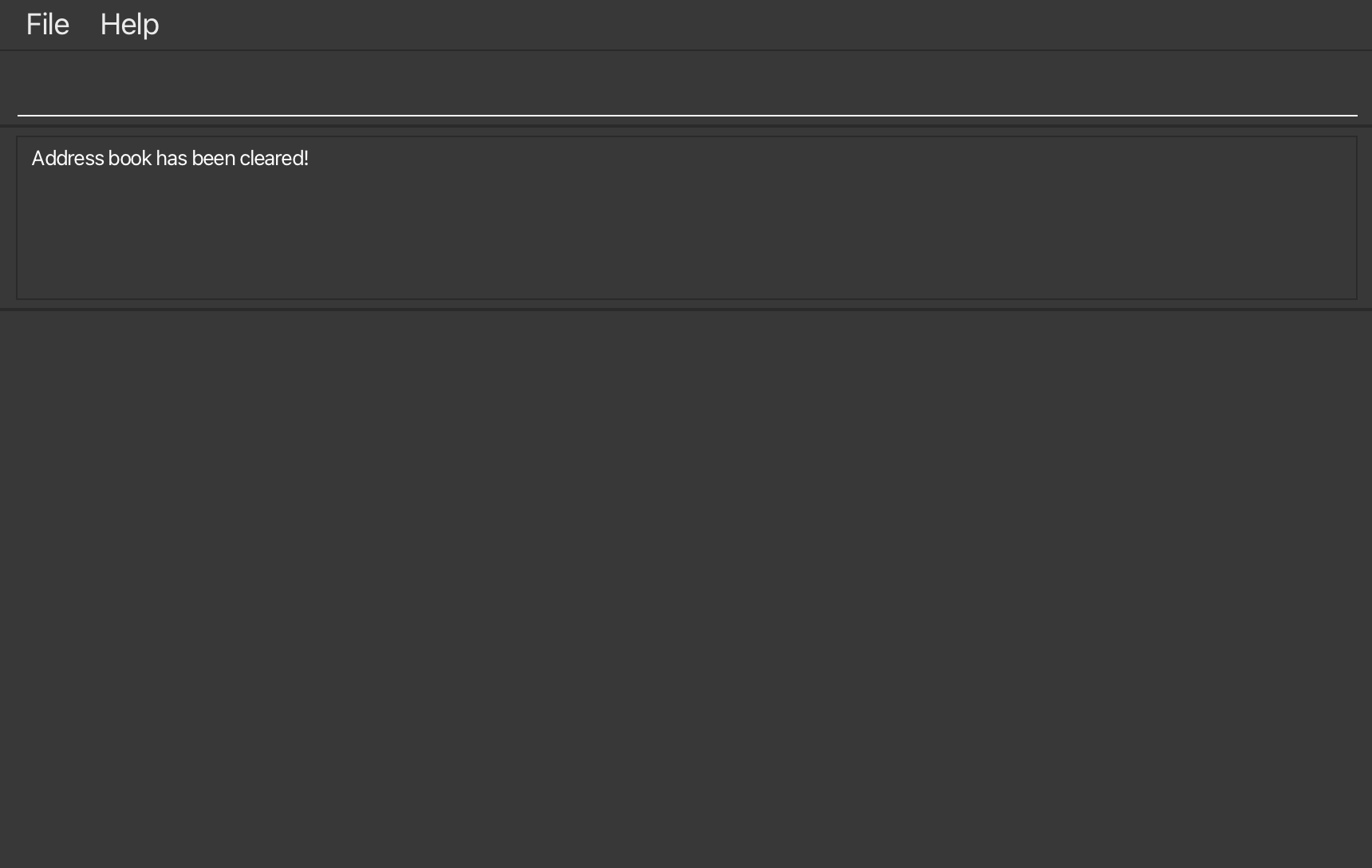
After clear
Exiting the program : exit
Exits the program. The application window will close soon after.
Format: exit
FAQ
Q: How do I transfer my data to another computer?
A: Install the app in the other computer and overwrite the empty data file it creates with the file that contains the data of your previous ArtHive home folder.
Known issues
-
When using multiple screens, if you move the application to a secondary screen, and later switch to using only the primary screen, the GUI will open off-screen. The remedy is to delete the
preferences.jsonfile created by the application before running the application again. Caution:
Deleting preferences.jsonwill reset ArtHive to use the sample data provided,and it will be saved to the file name specified inpreferences.json. If you previously used thesave [filename]command to change your save file, you should first:
- Back up your current data file from
[JAR file location]/data/[custom-filename.json]. -
After deleting
preferences.jsonand restarting ArtHive, use thesavecommand again or manually copy your backed-up data to the default location.</div> 2. If you minimize the Help Window and then run the
helpcommand (or use theHelpmenu, or the keyboard shortcutF1) again, the original Help Window will remain minimized, and no new Help Window will appear. The remedy is to manually restore the minimized Help Window.
Command summary
| Action | Format, Examples |
|---|---|
| Help | help |
| List | list |
| Add |
add n/NAME p/PHONE [e/EMAIL] [t/TAG]… [proj/PROJECT]… e.g., add n/James Ho p/91234567 e/jamesho@example.com t/friend proj/project-work
|
| Edit |
edit INDEX [n/NAME] [p/PHONE] [e/EMAIL]e.g., edit 2 n/James Lee e/jameslee@example.com
|
| Find |
find (n/NAME [NAME]… | p/PHONE [PHONE]…) e.g., find n/James Jake or find p/87487765 88888888
|
| Delete |
delete (p/PHONE | INDEX)e.g., delete 3 or delete p/87487765
|
| Tag |
tag p/PHONE (t/TAG | proj/PROJECT) [t/TAG]… [proj/PROJECT]…e.g., tag p/91234567 t/bestie proj/project-x
|
| UnTag |
untag p/PHONE (t/TAG | proj/PROJECT) [t/TAG]… [proj/PROJECT]…e.g., untag p/91234567 t/bestie proj/project-x
|
| SetStatus |
setstatus INDEX proj/PROJECT [pay/PAYMENT] [by/DEADLINE] [prog/PROGRESS] e.g., setstatus 1 proj/milestone1-5 pay/paid by/03 Apr 2025 2359 prog/complete
|
| Save |
save [FILENAME] e.g., save newfile
|
| Snapshot | snapshot |
| Switch Preferred Contact Method |
switchcontact p/PHONE e.g, switchcontact p/91234567
|
| Clear | clear |
| Exit | exit |